Guide
Resizing and Templates
Editing creatives and applying templates in Figma
Resizing and Templates
3 min read
With Figma for Adora, you edit the base creative once and the change applies to every ad size. This page shows how an imported ad is laid out in Figma, and where to make each type of edit.
How an imported ad is laid out
You import a whole submission at once, and each ad in it lands as one row on your Figma page. From left to right, a row has:
Main Component on the left holds the base creative. Any change here applies to all the ad sizes based off of it.
Submitted Image in the middle. This is the image submitted for assembly and is here for reference only.
Resized Ads on the right, where you can apply templates over the base creative.
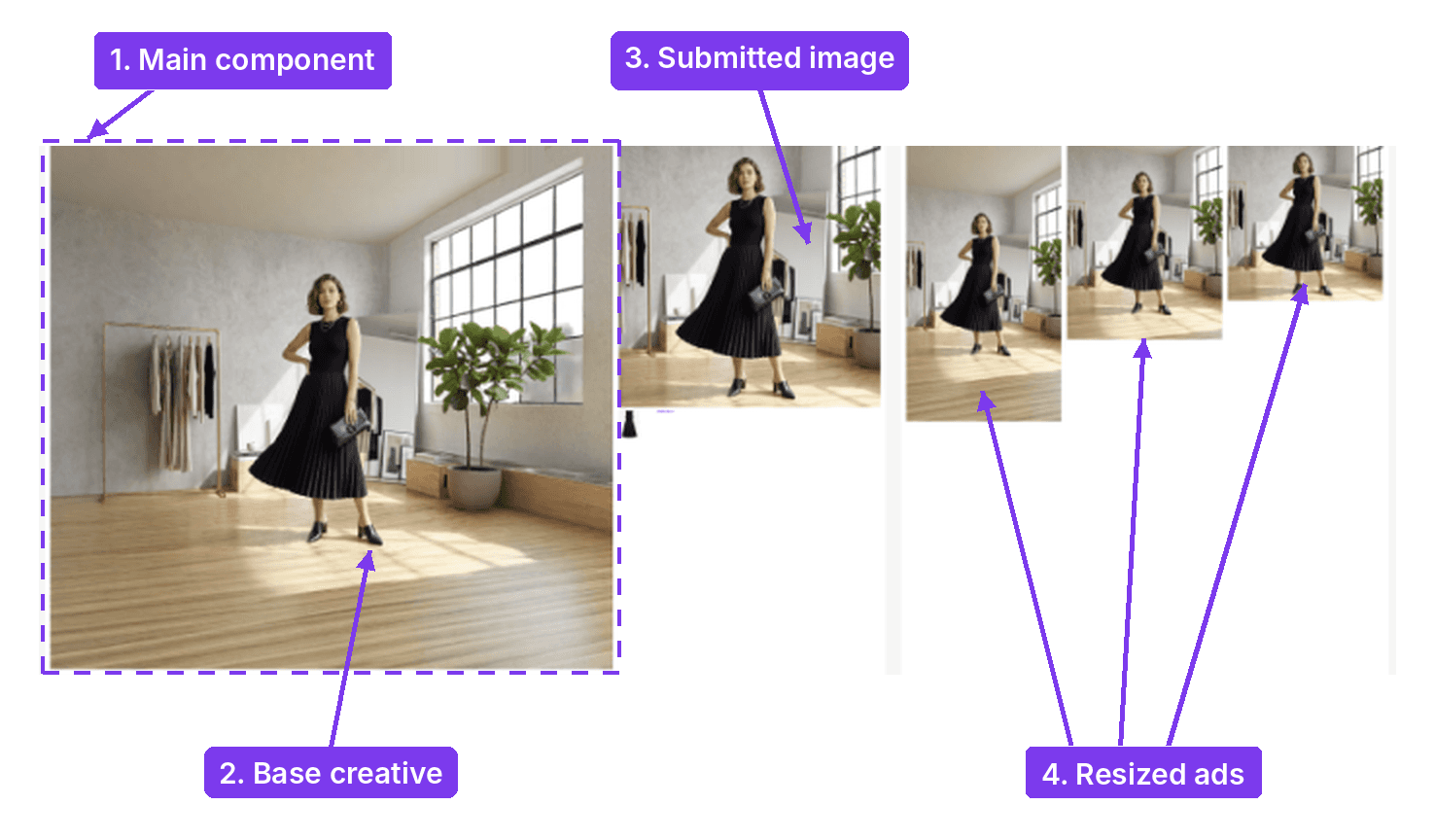
Adora names Resized Ads as “AD_” followed by a number. Duplicated or new ads not already in Adora will be named “NEW_” and will export as new ads.
If you want to…
If you want to | Do this in Figma |
|---|---|
Fix or retouch the base creative | Edit the Main Component. Every resized ad picks up the change. |
Replace the base creative with a modified version from another tool | In the Main Component, select the bottom image layer and choose Fill, then Choose image. Keep the fill mode on Fill. |
Expand the Main Component frame size | Expand the Main Component first, then reposition each size, then do touch-ups. Each size keeps its place when you work in that order. |
Reframe the base creative in a resized ad | Move or scale the base creative inside that Resized Ad. Hold Shift to keep its proportions. Avoid using right-click actions on the base creative. |
Add text, logos or shapes | Place them above the base creative inside the Resized Ad. |
Leave room for longer copy | Top-align text boxes and leave padding on the sides, so each line wraps correctly. |
Make templates easy to edit | Convert templates to components and use slots for anything that should be movable. This way, you can edit copy changes in one place but still have flexibility to move elements in each Resized Ad. |
Add blur, glass or blend effects | Apply them in the Main Component. Drop shadows, transparency and gradients work when applied to either the Main Component or the Resized Ad. |
Try another template on the same Base Image | Select the Base Image from Main Components and click Create Template Variants in the Plugin. Each variant exports as its own ad. |
Make more changes after a review | Run Import from Adora again from the Plugin with the same submission URL. It updates the ads already on your page and keeps your template work. |
Dos and don’ts
These edits look right in Figma but don’t work in Adora. Use the fix in the last column instead.
In Figma | What you’d see in Adora | Do this instead |
|---|---|---|
A blend mode on a template layer | Flat color, or nothing | Set template layers to Normal |
Background blur or glass on a template layer | The effect is missing | Apply it to the image in the Main Component |
A layer placed behind the image | The layer shows in front | Move it above the base creative in the Resized Ad or add it directly into the Main Component |
Color, rotation, opacity or fill changed on the image in one size | The change is ignored, or the crop is wrong | Only move or scale the base creative in a Resized Ad, and make other changes in the Main Component |
Keep all sizes for an ad bundled together
Follow these rules so every size of an ad exports back to Adora correctly:
Keep frame names as they are. Every size of an ad shares the same AD_ number.
Keep frame sizes as they are. To change what shows, move or scale the base creative inside the frame.
Replace the base creative only in the Main Component, never inside a Resized Ad.
Keep each Resized Ad a frame. Don’t convert it to a component, group or section.
Keep the ad on the Figma page you imported it to.

When you’re ready, select every size of the ad you changed and export to the same submission URL you imported from.
Ask Adora Prompt Guide - BETA
Scenarios and copy-ready prompts for Performance Analysis, Content Creation, Ad Approval and Launch in Ask Adora.
Was this helpful?
Yes
No